Do you need to include a purchase order (PO) reference when placing an order online? Here’s a simple step-by-step guide to help you through the process:
- Add products to your basket
Select the products you wish to purchase and add them to your basket. - Review your basket
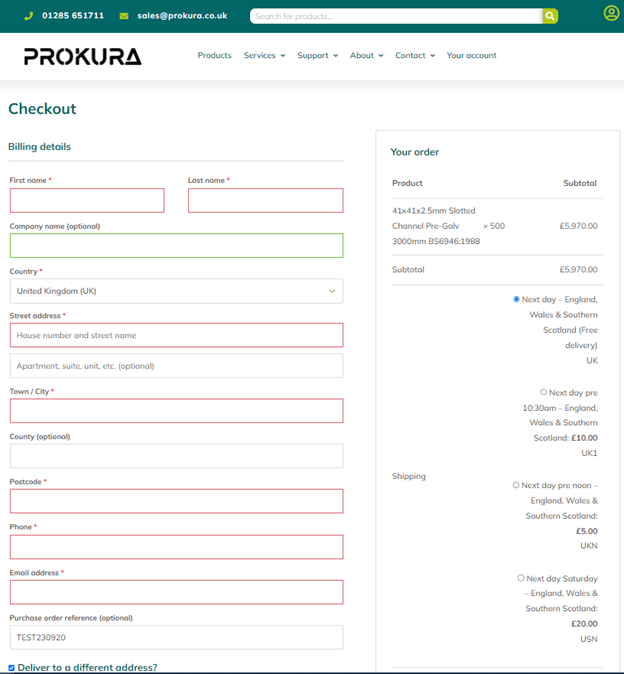
When your basket is complete, proceed to the checkout. If you’re not already logged in, make sure to log into your account. - Navigating the checkout page
Enter your billing and delivery details. - Add Your PO Reference
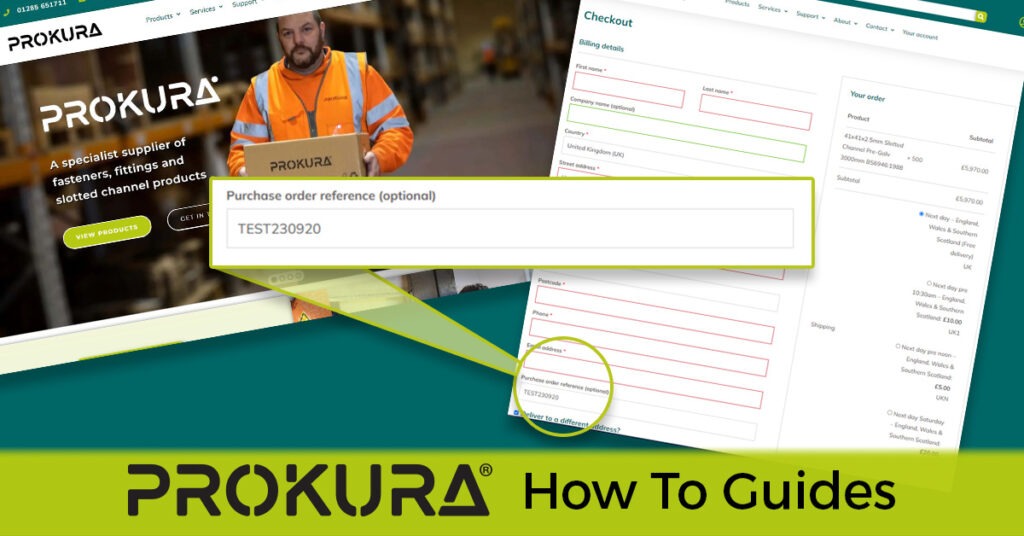
At the bottom of the billing details panel, you’ll find an additional field labelled ‘Purchase order reference (optional)’ where you can input your PO number.